Fundamental concepts and setup steps for configuring GitHub Advanced Security in Azure DevOps.
Config GitHub Advanced Security for Azure DevOps Security
Enable GitHub Advanced Security
You can enable Secret Protection or Code Security at the organization, project, or repository level.
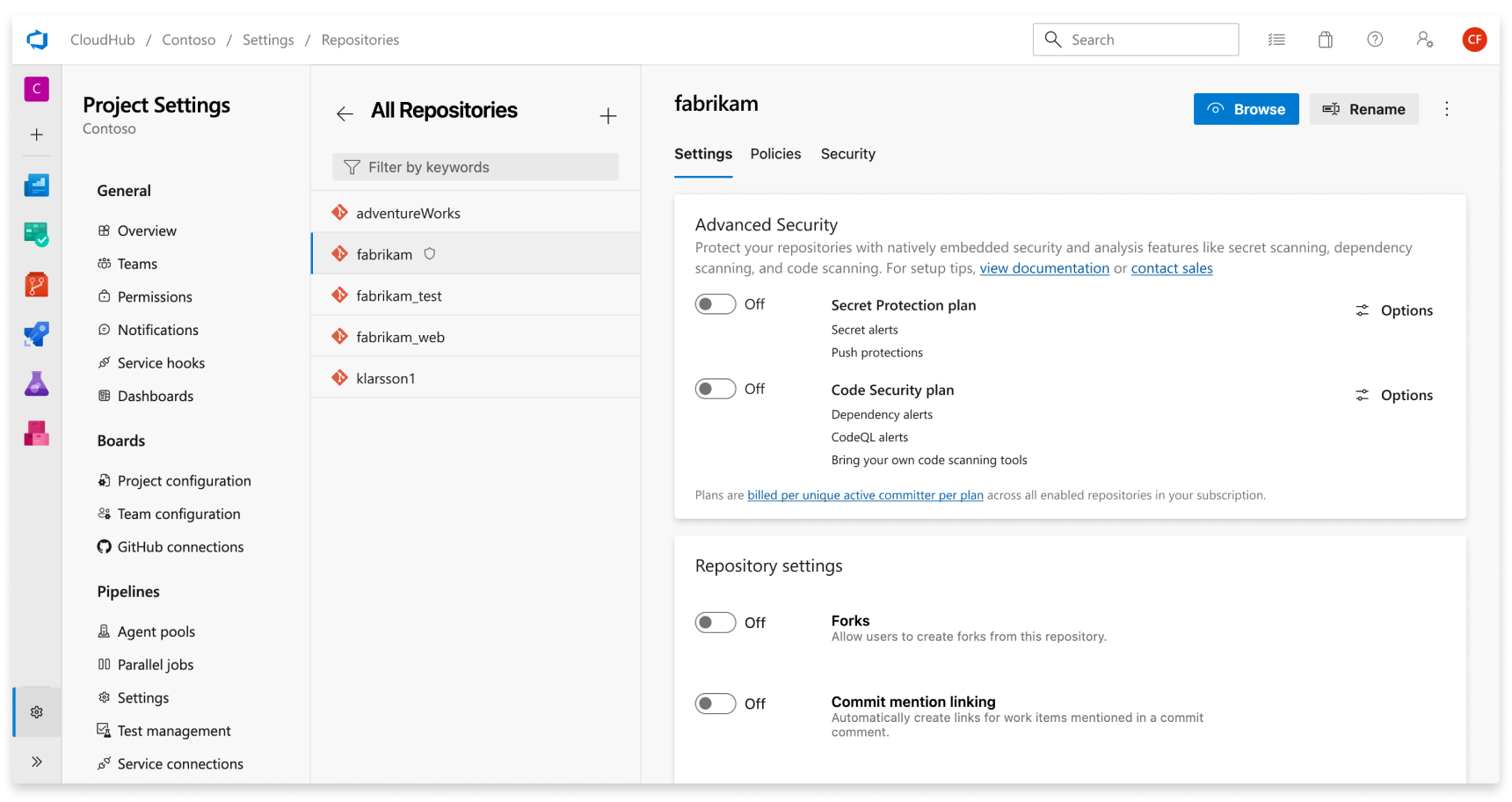
Repository-level onboarding
- go to Project Settings
- Repos > Security
- Select repo you want to enable GHAS
- Toggle either Secret Protection or Code Security
- Select Begin billing. A shild icon now appears in the repository view for any repository with either product enabled.
- To ontionally enable dependency scanning default setup, selecct Options and enable the Dependency scanning default checkbox.
Project Level onboarding
- go to Project Settings
- Security
- Select project you want to enable GHAS
- Toggle either Secret Protection or Code Security
- Select Begin billing. A shild icon now appears in the repository view for any repository with either product enabled.
- To ontionally enable dependency scanning default setup, selecct Options and enable the Dependency scanning default checkbox.
Project Level onboarding
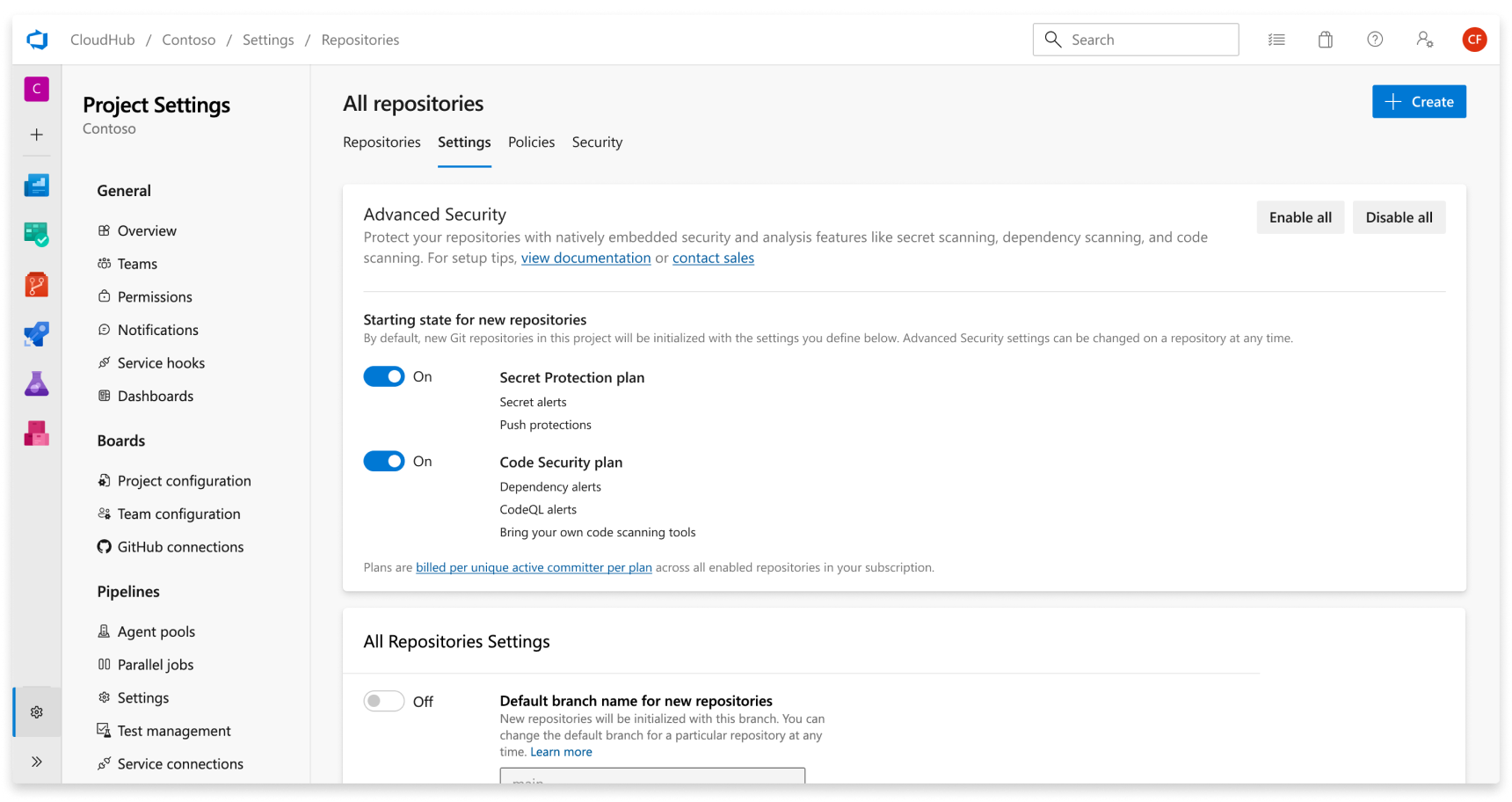
- Go to your Project settings for your Azure DevOps project.
- Select Repos.
- Select the Settings tab.
- Select Enable all and see an estimate for the number of active committers per product for your project appear. This action only enables the selected product for existing repositories.
- Toggle your desired products of Secret Protection or Code Security and all associated subfeatures.
- Select Begin billing to activate Secret Protection and/or Code Security for every existing repository in your project.
- Optionally, toggle Automatically enable Advanced Security for new repositories so that any newly created repositories in the future have Secret Protection or Code Security enabled upon creation. This setting is separate from the Enable all action and must be selected independently.
Setup
Set up secret scanning
Push protection and repository scanning are automatically enabled with Secret Protection. Configure push protection from repository settings.
Push protection only scans commits after enabling. Repository scanning detects existing secrets, including historical commits.
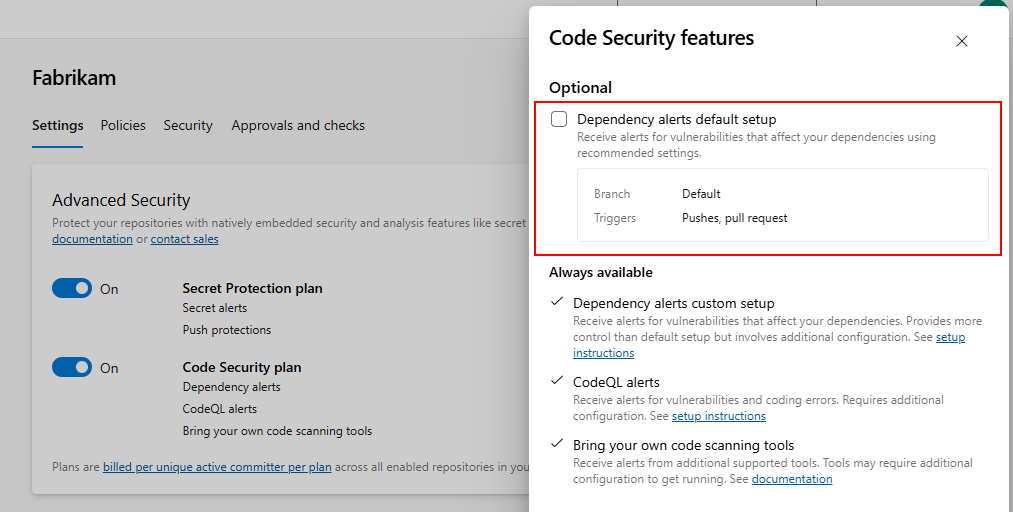
Set up dependency scanning
Requires Code Security enabled. Dependency scanning runs via pipelines with results aggregated per repository.
For default branch scanning, enable "Scan for vulnerable dependencies" in repository settings. This automatically adds the scanning task to pipelines targeting your default branch or PR builds.
For all-branch scanning, add the dependency scanning task to your pipelines directly.
Set up code scanning
Requires Code Security enabled. Code scanning runs via pipelines with results aggregated per repository.
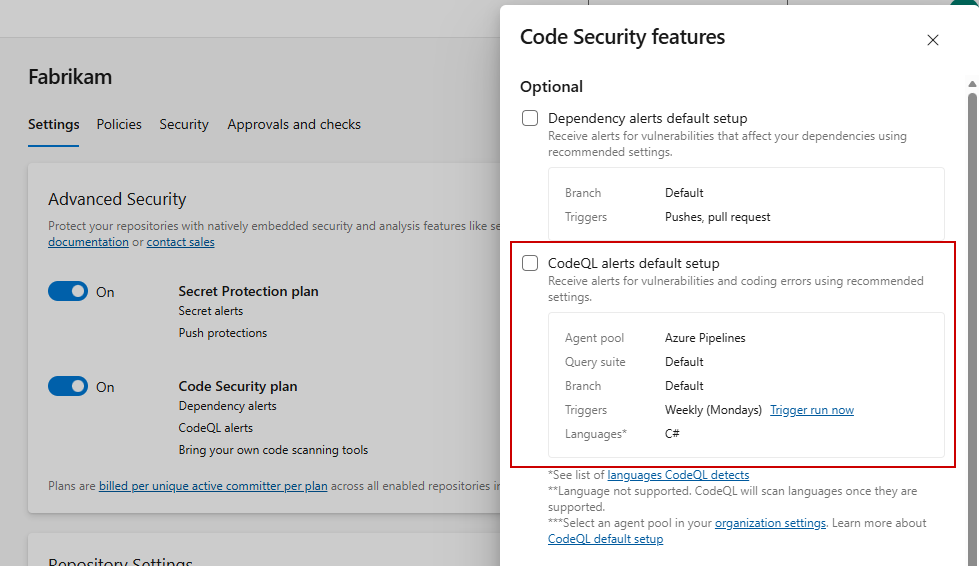
Default setup - Quick, scheduled scanning via Azure Pipelines. Auto-detects supported languages (C#, C/C++, Java, JS/TS, Python, Ruby, Rust) and configures scanning. Go and Swift require advanced setup.
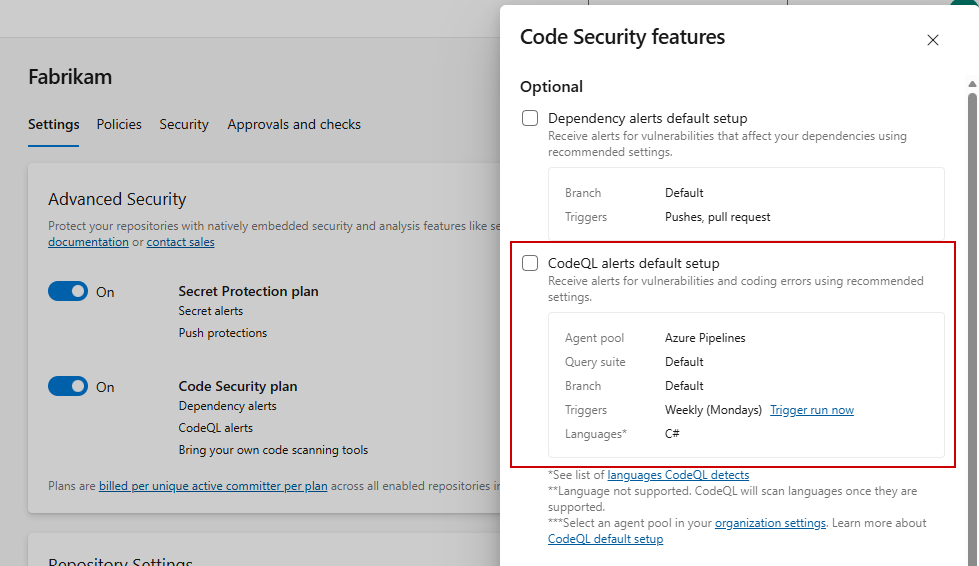
Configure agent pool and schedule from Organization settings > Repositories > CodeQL default setup options.
Advanced setup - Full control by adding CodeQL pipeline tasks directly to your pipelines. Use for custom agent pools, build steps, or multi-branch scanning.
Recommendation: Start with default setup. Combine with advanced setup if you need more control.
Default setup runs weekly. Initial scan queues immediately upon enabling—no wait for scheduled run. Vulnerabilities appear in the Advanced Security tab.
Dependency Scanning Explain
Maven
Detection requires the maven CLI to be installed on the agent.
Development dependencies are identified when they use the test dependency scope.
npm
Dependency scanning detects any root package.json files but doesn't resolve specific package versions without a package restore at build time even if dependencies in the package.json aren't semantically versioned.
Development dependencies are identified by the devDependencies property in package.json and the dev flag in package-lock.json.