30+ tips & tricks for Firefox Developer Tools for web developers. Page Inspector, Console, Debugger, Network, RDM, and Storage.
Firefox DevTools 🔥🦊
Console Screenshots

- Capture precise element screenshots without manual cropping.
- Files save directly to default Downloads folder.
JavaScript Debugger
Step through code
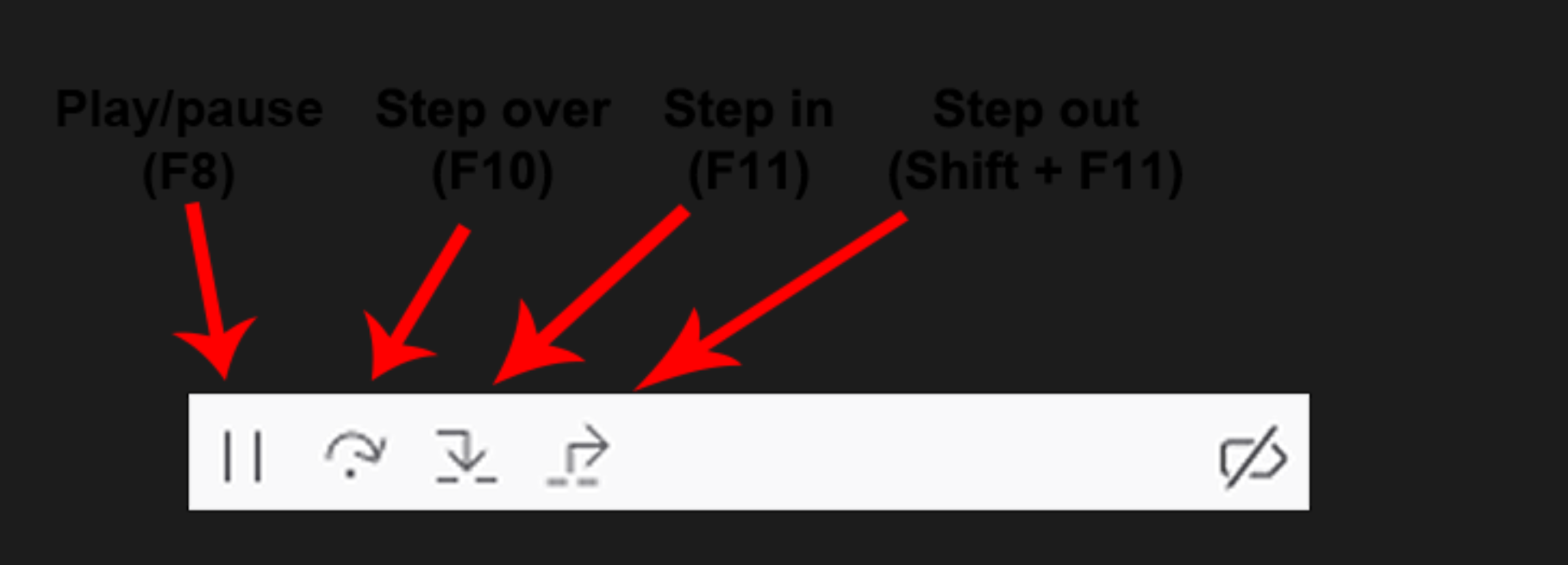
- Play: run to the next breakpoint
- Step over: advance to the next line in the same function.
- Step in: advance to the next line in the function, unless on a function call, in which case enter the function being called
- Step out: run to the end of the current function, in which case, the debugger will skip the return value from a function, returning execution to the caller
Conditional Breakpoints
Right-click line number → Add condition:

Execution pauses only when the condition evaluates to true — avoiding temporary if statements or debugger code edits.
Search Function / Line Number
Press Ctrl+P to search files.

Search prefixes within the input box:
Pretty Print Minified Code
Click the {} icon at the bottom of the Debugger panel to format minified source files when debugging production code without source maps.
URL Breakpoints (XHR/Fetch)
Debugger sidebar → XHR Breakpoints → add target URL pattern.
- Pauses execution before the network request is sent.
- Pinpoint exact source line triggering the request.
- Substring patterns supported (e.g.
api/users).
Disable/Enable Breakpoints
Right-click breakpoint → Disable (retains position without deleting).
Toggle individual or all breakpoints via checkboxes in Breakpoints sidebar.
Network Monitor
Edit and Resend HTTP Requests
Right-click request → Edit and Resend.
- Modify URL, HTTP method, headers, and request body.
- Test fixes for
POSTrequests without re-running full application UI flows. - Compare responses between original and modified requests.
Filtering Requests (Negative Filter)
Press Ctrl+F inside Network panel → enter -domain.com:
Identify third-party or external requests quickly during performance audits.
Speed Throttling
Select throttling preset from network toolbar:
Hot/Cold Profiling
Click the stopwatch icon in Network panel → load page twice:
- Cold: empty browser cache (first visit simulation).
- Hot: primed cache (returning visit simulation).
Compare timelines side-by-side to understand first-time vs returning user performance.
Save and Import HAR Files
Right-click Network table → Save All As HAR.
- Export full network log for offline analysis and sharing.
- Import HAR files to replay request timeline as if live.
- Useful for diagnosing issues unique to specific network environments.
Responsive Design Mode (RDM)
Press Ctrl+Shift+M to toggle RDM.
Custom Devices
Device dropdown → Edit list → toggle presets or select Add Custom Device.
Mozilla maintains the simulated-devices repository — submit PRs to add custom device definitions.
Throttling within RDM
Select network speed throttle directly from the RDM toolbar while testing responsive viewports.
Simulate Touch Events
Click the hand icon ✋ to enable touch event emulation:
- Click → tap event
- Long-click → long-tap → context menu
- Disable drag-select behavior
Change User Agent
Settings (gear icon) → check Show user agent → enter custom UA string.
Check Reload when user agent is changed (most websites detect UA upon initial page load).
Storage Inspector
Editing Cookies
Double-click cell to edit directly:
- Editable: name, value, domain, path, expires, secure, httpOnly.
- Read-only: creation date, last access date, hostOnly, sameSite.
Deleting Cookies and Storage Data
⚠️ Delete all from domain requires an exact match: .medium.com ≠ medium.com.
Realtime Cookie Updates
When Storage Inspector is open, updated cookie rows flash orange in real-time without requiring a refresh.
IndexedDB: Static Snapshot
IndexedDB data views do not update in real-time — they present a static snapshot captured when opening Storage Inspector. Click Refresh (top left) to capture a new snapshot.
Customizing Table Headers
Right-click table header → toggle column visibility.